
Symptoms
The vendor is recognized incorrectly and there is a need to change it if some information is found on the invoice
Cause
- There is information related to a different Vendor from the Data Set in the document.
- There are several vendors that share the same information
- There is no information about the right vendor in the document
Resolution
- Create a FlexiLayout Studio project and upload samples of those vendors into the project.
- Disable Header's and Footer's groups and create a Static Text element.
- Go to the properties of this Static Text Element and define that it should look for the information that is only present in the invoices of this vendor.
- Create A block for this element and select Static Text element as a source element for this block
- Export the FlexiLayout .afl file to the location that is suitable for you.
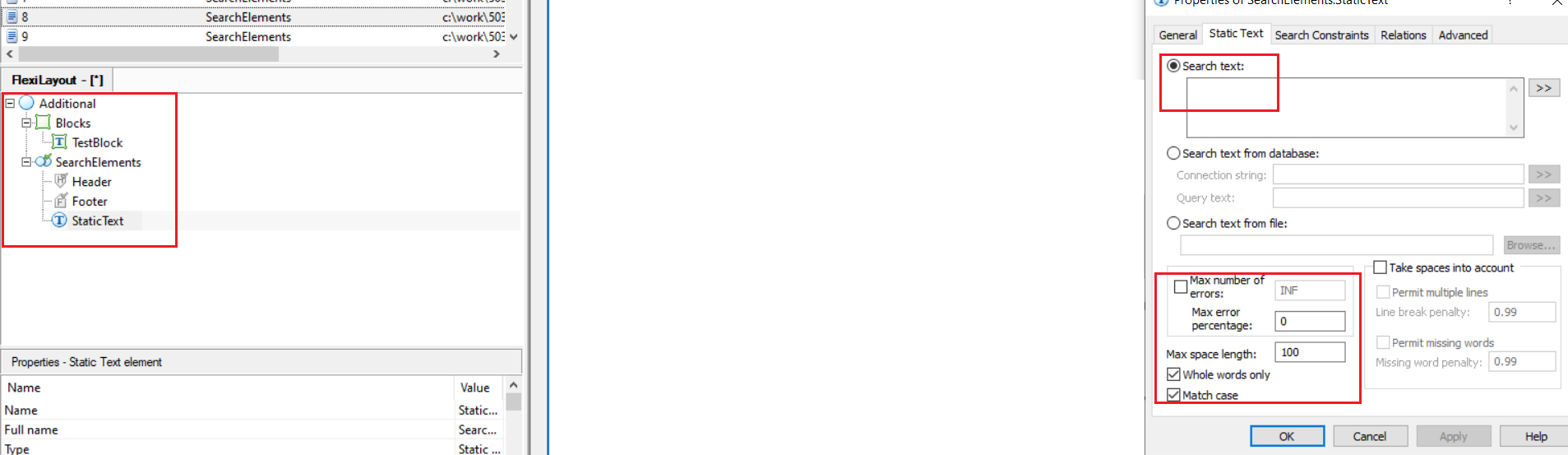
- Go to the Document Definition properties and add this .afl file as an additional layout. This will add this field to the Document Definition

- Go to the properties of this field and disable Export field value, Should be matched and Show on Verification. Go to the Verification tab and disable the required verification.

- Go to the properties of the Vendorid field, Select the Rule tab and create a new Script rule, make sure that you add the newly created field to this rule and disable read-only for the VendorID field. You will see a prompt that will ask you to create a rule chain since the Vendor ID Field has a rule already, so enter the name of the chain that you like and put this new rule to the very top.

- Click Edit in the rule and use this JScript.Net code:
if (Context.Field("TestBlock").Text=="Value that is specific for this Vendor") {
Context.Field("VendorId").Text=Id of the Vendor that you want to be used;
}
This script will check the value of the custom, newly-created field and if its value matches the criteria VendorID will be changed to the one that you need.