
FineReader Server 14 is able to import from subfolders (see option Use files in subfolders at the Input tab). If this option is enabled FineReader Server 14 restores the subfolder structure at the export stage.
If this behavior does not fit your goals you can use the solution described below.
Solution for FineReader Server 14
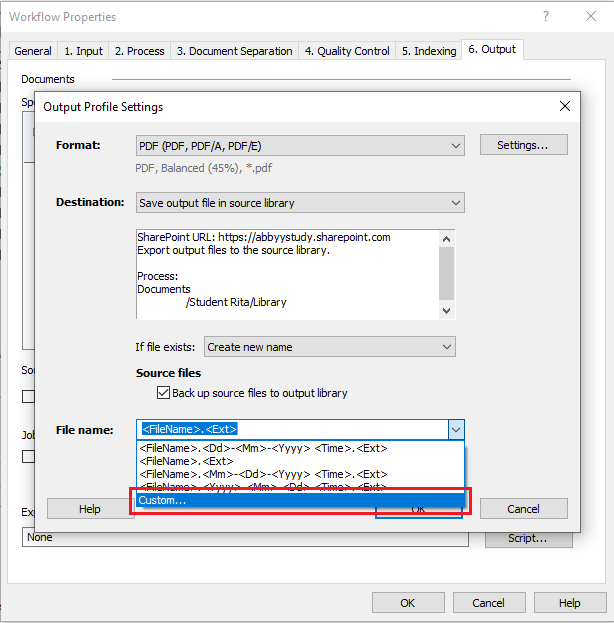
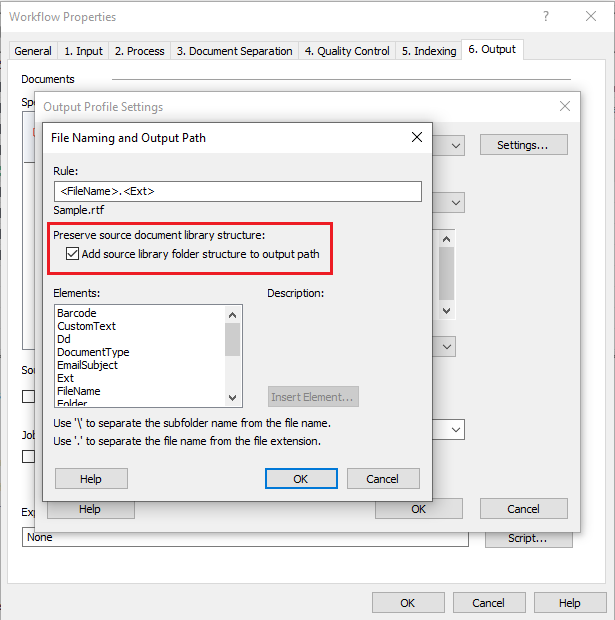
In order to export into the <export folder> instead of export into <export folder>\<subfolder>, do the following:
go to Workflow Properties > Output section> Output Profile Settings > choose Custom in File Name drop-down menu and tick Add source library folder structure to output path
Solution for Recognition Server 4.0
Use the following script to be able to export into the <export folder> instead of export into <export folder>\<subfolder>:
// --------- JScript ---------
var fso = new ActiveXObject("Scripting.FileSystemObject");
for (i = 0; i < OutputFormats.Count; i++ )
    {
     //Get access to the export formats
     var format = OutputFormats.Item( i );
     var folderPath = format.OutputLocation;
     for( j = 0; j < format.OutputFiles.Count; j++ )
        {
         //Get the name of the file being exported
         var initialName = format.OutputFiles.Item( j );
         //Get a full export path including a subfolder
         var fullPath = fso.BuildPath( folderPath, JobProperties.Subfolder);
         /*Check if the file with this name already exists in the export folder,
         delete the file if it already exists.*/
         if ( fso.FileExists( folderPath + "\\" + initialName ) )
            {
             fso.DeleteFile( folderPath + "\\" + initialName );
            }
         //Move the file into the export folder from the subfolder
         fso.MoveFile( fullPath + "\\" + initialName , folderPath + "\\" + initialName );
        }
    }
//Delete the emptied subfolder
var folder = fso.GetFolder(fullPath)
folder.Delete(1);
In case the file of the same name already exists in the export folder it is deleted. You can change it by modifying the following part of the code:
fso.DeleteFile( folderPath + "\\" + initialName );